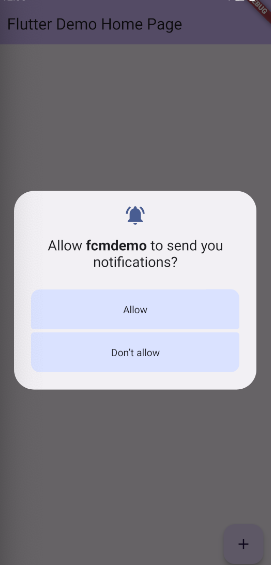
In this blog, we’ll explore how to integrate Firebase Cloud Messaging (FCM) to receive push notifications in Flutter applications.
Why is push notification important?
Push notifications are a crucial tool in modern app development. They allow you to send real-time updates and engage users even when the app is not actively in use.
Advantages :
1. User Engagement
Notifications keep your app in the user’s mind. Whether it’s a message alert, new content, or a reminder, push notifications help drive user engagement and retention.
2. Real-Time Communication
For apps like chat, e-commerce, or news platforms, sending timely updates is critical. Push notifications allow you to deliver instant messages, alerts, or updates directly to the user.
3. Personalization
With Firebase, you can target users based on behavior, location, or preferences. This means you can send highly relevant notifications, improving the user experience.
4. Boost Retention & Re-engagement
Notifications can remind inactive users to return to your app, boosting retention. Whether it’s a special offer, new feature, or just a friendly nudge — it keeps your app relevant.
5. Efficient & Lightweight
Compared to email or SMS, push notifications are lightweight, quick to deliver, and cost-effective. They work seamlessly across platforms via Firebase Cloud Messaging.
Let’s Integrate Firebase Push Notification In Flutter applications
Firebase Project Setup
- Go to the firebase console : https://console.firebase.google.com/
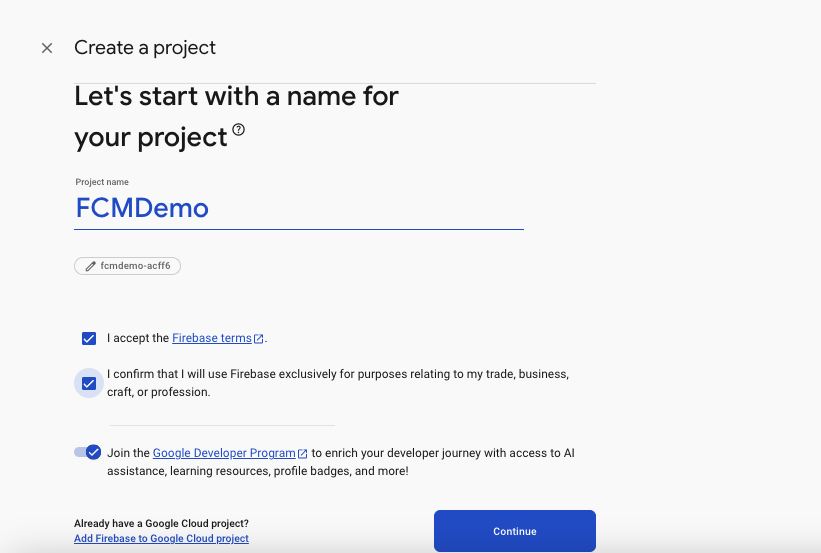
- Create firebase project in the firebase console as shown in below picture
I have created FCMDemo
In the Firebase Console, click “Add App” and choose the For android (Android icon) , for iOS (iOS icon)
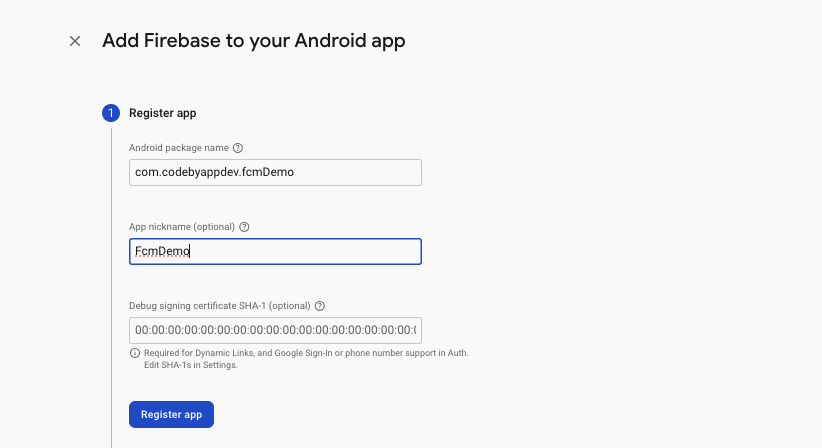
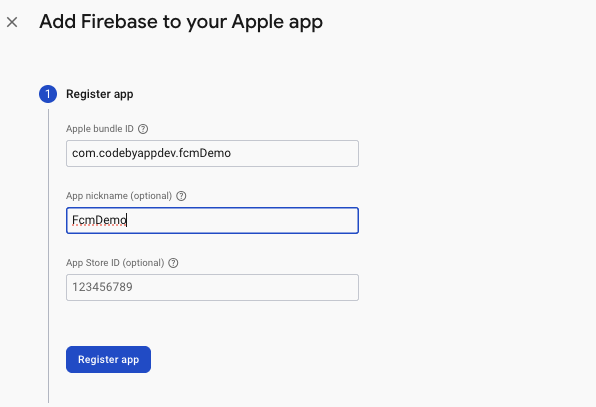
Register your (Android) app with:
- Package name (same as in your Android AndroidManifest.xml)
- (Optional) App nickname and SHA-1 key (for Google sign-in, etc.)
- Download the google-services.json file
Register your app with:
- iOS bundle ID (same as in your Xcode project)
- (Optional) App nickname and App Store ID
- Download the GoogleService-Info.plist
Hope you have done above all steps now move to flutter app we will now integrate firebase into
Flutter Application – Android Setup
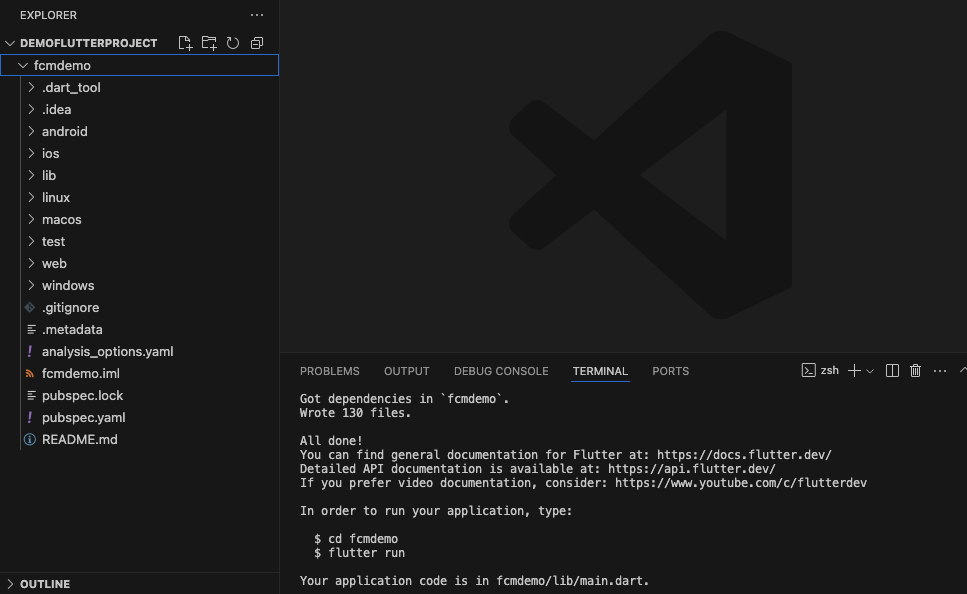
- Create Flutter project
- Now, add google-services.json into your flutter project at: “android/app/”
- Update your Android project: classpath ‘com.google.gms:google-services:4.3.15’ // latest version
- In android/app/build.gradle, add:
- apply plugin: ‘com.google.gms.google-services’
- apply plugin: ‘com.google.gms.google-services’
Flutter Application – iOS Setup
- Open your iOS module in Xcode (ios/Runner.xcworkspace)
- Change your default bundle identifier with firebase iOS identifier in info.plist
- Drag GoogleService-Info.plist into the Runner project (select “Copy items if needed”)
- Add Notification capability
- In ios/Podfile, ensure platform is set to at least: platform :ios, ‘12.0’
Add Firebase SDKs to Flutter
dependencies:
  firebase_core: any
  firebase_messaging: any
Initialize Firebase in your app:
void main() async {
WidgetsFlutterBinding.ensureInitialized();
await Firebase.initializeApp();
runApp(MyApp());
}
Note: don’t forget to request permission for notification
await Permission.notification.isDenied.then((value) {
if (value) {
Permission.notification.request();
}
});
Generate firebase token :
FirebaseMessaging.instance.getToken().then((value) {
print(“Token: $value”);
});
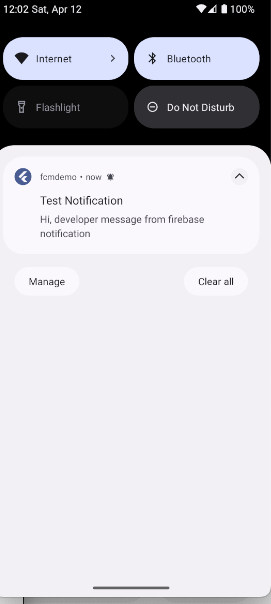
Now Run flutter app on android device and send notification from Firebase console.
I have sent notification from firebase console and received on android device